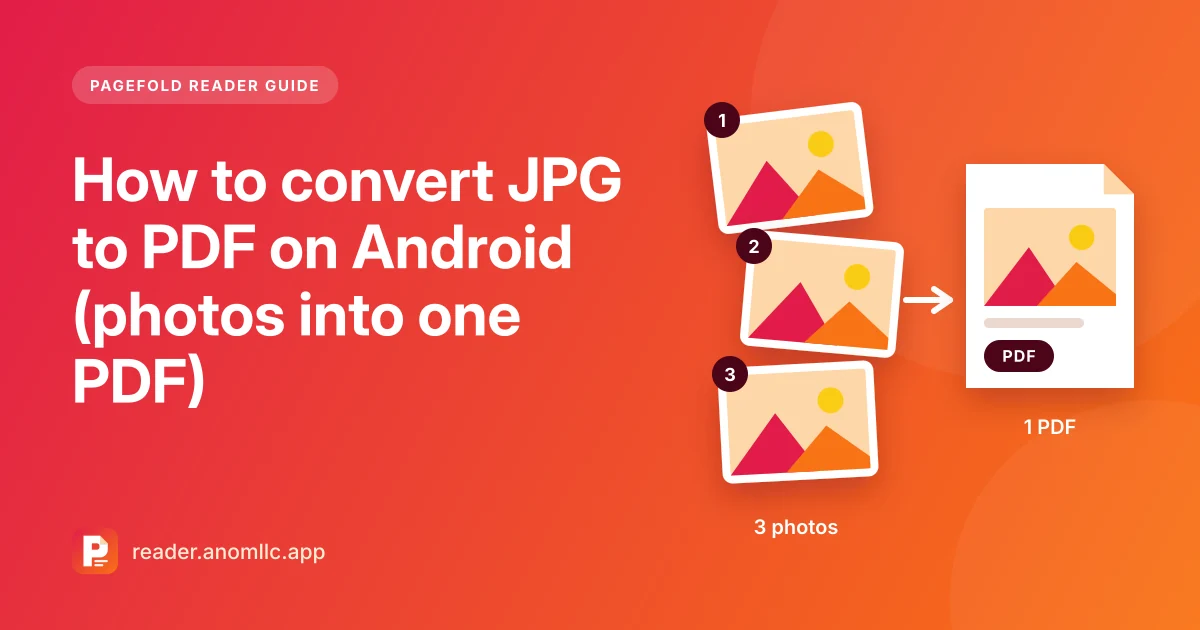
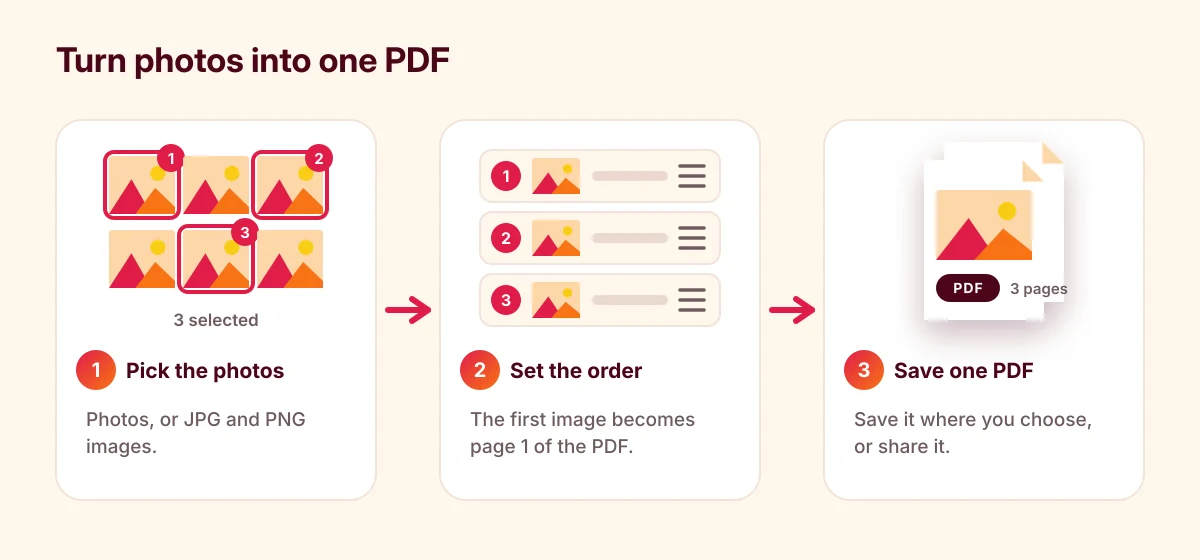
To convert JPG to PDF on Android, open an images-to-PDF tool, pick your photos, put them in order and save them as one PDF. Each photo becomes one page. Pagefold Reader does this for free, offline and without uploading your pictures. This guide shows the steps, a way to save a single photo as a PDF without installing anything, and how to make pages that are easy to read.
Why turn photos into a PDF?
- Forms and portals often accept PDFs only, not JPG or PNG images.
- One file instead of many. Ten photos in a chat arrive in random order. One PDF keeps them in order.
- Easier to print and to read on a computer, where a PDF opens as one document with pages.
Convert photos to one PDF with Pagefold Reader
- Open Pagefold Reader and choose Images to PDF from the PDF tools.
- Pick the images. Choose photos, or JPG and PNG images saved on your phone, such as screenshots.
- Set the order. The first image becomes page 1, the second becomes page 2, and so on.
- Create the PDF. Tap Create PDF. The new PDF appears in your recent files. Tap Save to phone to keep a copy in Downloads or a documents folder, or Share to send it straight away.
- Check it. Open the PDF and zoom in on each page to make sure everything is readable.
Save a single photo as a PDF without an app
Android has a "Save as PDF" printer built in, and many gallery apps can use it:
- Open the photo in your gallery app.
- Tap the three-dot menu and choose Print. Not every gallery app has this option.
- At the top of the print screen, change the printer to Save as PDF.
- Tap the PDF button, choose a folder and save.
This is handy for one picture. For several photos in one file, in an order you choose, an images-to-PDF tool is simpler.
Photos of documents? Scan them instead
If your photos are of paper documents, such as an ID card, a form, a certificate or a receipt, a scanner app gives a far better result than a plain photo. A scanner finds the edges of the page, straightens it, removes the table around it and makes the text crisp. The PDF looks like a real document, not like a photo of one.
The Scan button in Pagefold Reader hands off to Pagefold, our separate scanner app. Our guide on how to scan documents on Android has the steps and tips for sharp scans.
Use images to PDF for things that really are pictures: screenshots, photos of a product or damage for a claim, or images someone sent you.
Tips for clear, readable pages
- Crop first. Use your gallery's edit tool to cut away the background before you convert. The page then shows only what matters.
- Rotate first, or after. Make sure each photo is the right way up. If a page comes out sideways, fix it with Rotate in Pagefold Reader.
- Take a sharp photo. Use good light, hold the phone steady and parallel to the paper, and tap the screen to focus.
- Check small text. Zoom in on the PDF before you send it. If you can't read the small print, the person receiving it won't either.
Keep the file size down
Photos from modern phone cameras are large, often a few megabytes each, and a PDF made from them is roughly the size of the photos added together. If an upload form has a size limit:
- Use only the photos you need. Leave out near-duplicates.
- Crop away the background. A cropped photo is smaller.
- Use a smaller picture size. Many camera apps let you choose the photo size or resolution in their settings.
- Scan text documents in black and white with a scanner app. That makes much smaller files than colour photos.
Add the result to other documents
Need the photos as part of a bigger file, for example after an application form? Make the photo PDF first, then combine the two. See how to merge PDF files on Android.
Is it safe to use online converters?
Online JPG-to-PDF websites work, but you upload your photos to a server you don't control. For pictures of ID cards, bank cards, medical papers or your family, converting on your phone is safer. Pagefold Reader does the conversion on your phone and never uploads your images.
Common questions
Are my photos changed? No. The PDF is a new file, and your photos stay in your gallery as they were.
Can I convert a PDF back to JPG? Pagefold Reader doesn't save PDF pages as images. If you scanned the document with Pagefold, it can save pages as images in your gallery.
Does it need internet? No. Pagefold Reader works offline.
Related guides: how to password protect a PDF and how to open a PDF on Android.