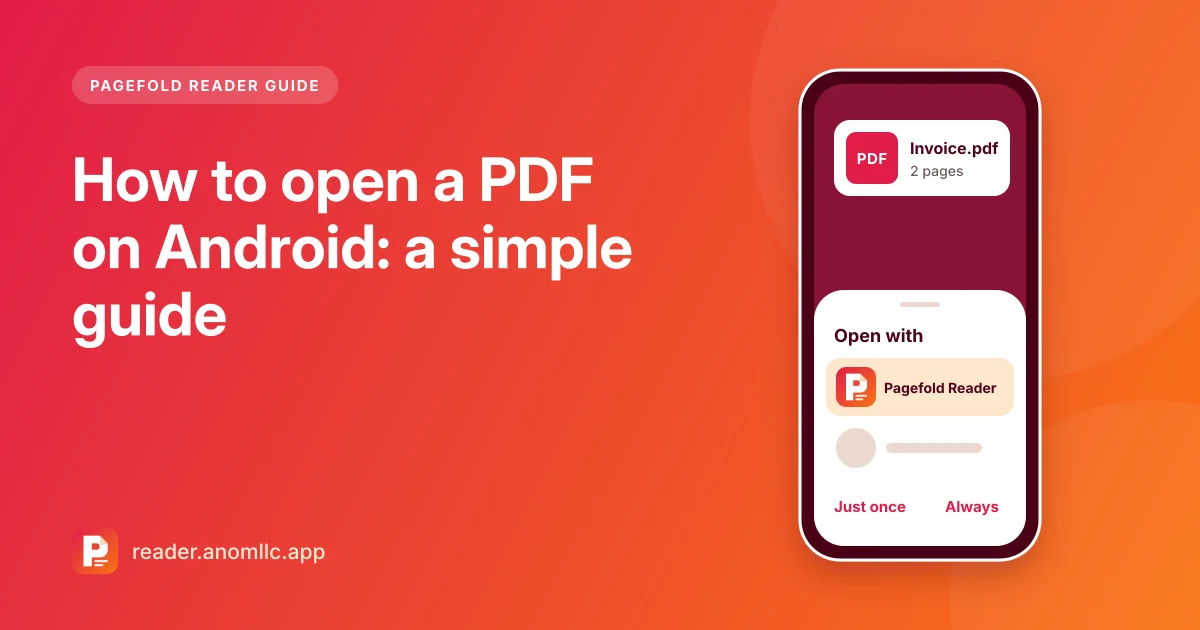
To open a PDF on Android, tap the file wherever it is (a chat, an email, your Files app or your downloads) and choose a PDF reader when your phone asks which app to use. If you see "No app can open this file" instead, install a free PDF reader app, then tap the file again. This guide covers each place PDFs come from, how to set or change the app that opens them, and what to look for in a PDF reader for Android.
We make Pagefold Reader, a free PDF reader for Android, and use it in the examples. The steps work with any reader app.
Does Android have a PDF reader built in?
It depends on the phone. Some phones come with an app that can show PDFs, and some storage or browser apps include a basic viewer. Other phones have nothing that opens PDFs at all. That's why the same file opens on one phone and shows an error on another.
If your phone keeps asking which app to use, says it can't open the file, or opens PDFs in a viewer you don't like, a PDF reader app solves it.
Open a PDF from a chat app
This works for WhatsApp, Telegram and most other chat apps.
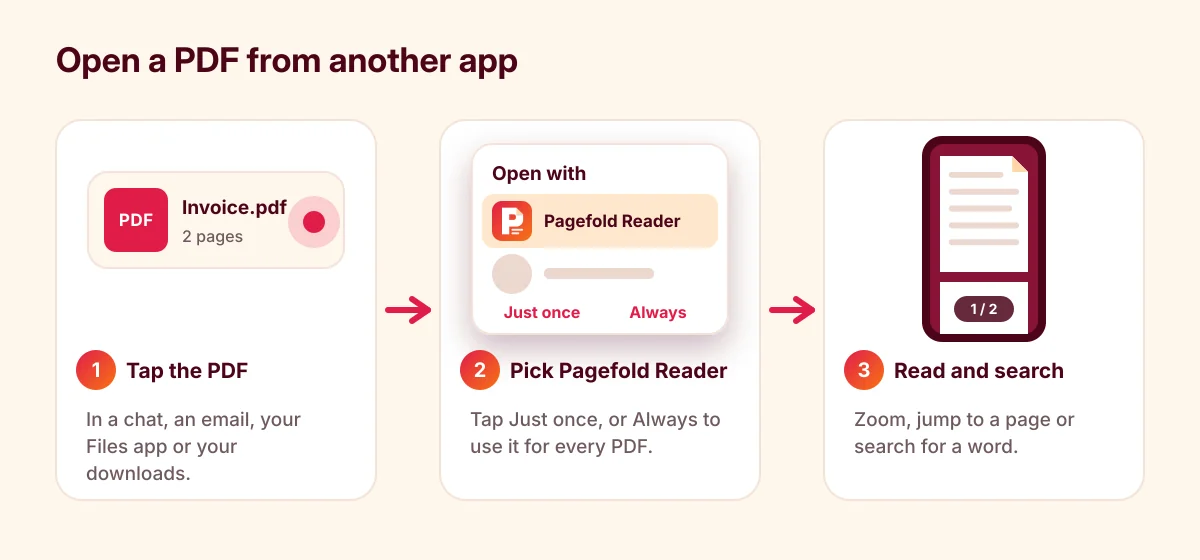
- Tap the PDF in the chat. If it shows a download arrow, tap it and wait until the download finishes.
- Tap the file again. Android shows a list of apps that can open it. On most phones the list is titled Open with.
- Choose Pagefold Reader (or another reader). Tap Just once to use it this time, or Always to make it the app for every PDF.
If the chat app opens the file in its own preview, look for a share icon or the three-dot menu. Choose Share or Open with, then pick your reader. Pagefold Reader appears in both lists.
Open a PDF attachment from email
- Open the email and tap the attachment.
- Some email apps, such as Gmail, show a quick preview first. To open the file in a reader app, tap the download icon to save it, then open it from your downloads. You can also check the three-dot menu for Open with.
- Choose your PDF reader from the list.
Open a PDF you downloaded
- Open your phone's Files app. On some phones it's called My Files or File Manager.
- Tap Downloads. Files saved from a browser or an email usually land here.
- Tap the PDF and choose your reader.
You can also tap the notification that appears when a download finishes, or open the downloads list from your browser's three-dot menu. Some browsers show PDFs inside the browser. To use your reader app instead, open the file from Downloads.
Open a PDF from inside Pagefold Reader
- Open Pagefold Reader and tap Open PDF.
- Android's file picker opens. Look in Recent and Downloads, or open the menu to browse other places, such as Google Drive or other storage on your phone.
- Tap the PDF. It opens straight away.
Every file you open is added to the recent list, with a small picture of the first page, its size and its number of pages. Tap it next time and it reopens on the page where you stopped.
Pagefold Reader doesn't search your whole phone for PDFs, because it doesn't ask for permission to see all your files. You choose each file yourself. That's a little less automatic, but it means the app only ever sees the documents you give it.
Set or change the app that opens your PDFs
If you tapped Always and later want a different app, clear the old choice:
- Open Settings and go to Apps.
- Find the app that opens your PDFs now and tap it.
- Tap Open by default or Set as default, then Clear defaults or Clear default preferences. The names differ a little between phone brands.
- Tap a PDF again. The Open with list comes back, and you can choose the app you want.
Reading tips once the PDF is open
- Zoom: pinch with two fingers, or double-tap to zoom in on a spot.
- Jump to a page: in long files, use go to page or the page thumbnails instead of scrolling.
- Night mode: Pagefold Reader can show pages dark, which is easier on the eyes at night.
- Bookmarks: bookmark the pages you come back to, such as a timetable or a price list.
- Favourites: star the files you use often so they're easy to find in the recent list.
- Find a word: search works in PDFs that contain text. Scanned PDFs often don't. See how to search text in a PDF.
What to look for in a PDF reader for Android
| Check | Why it matters |
|---|---|
| Opens files from other apps | Most PDFs arrive in chats and emails |
| Works offline, with no account | You can open a ticket or a form with no signal |
| Asks for few permissions | A reader doesn't need your camera, your contacts or every file on your phone |
| Search, go to page, night mode | Long documents are easier to use |
| Tools you actually need | Merging, splitting or locking a PDF without a computer |
| Clear about ads and costs | You know what you're agreeing to before you install |
On Google Play, read the Data safety section and the "Contains ads" and "In-app purchases" labels under the Install button before you install any reader.
Where Pagefold Reader fits
Pagefold Reader is free, needs no account, works offline and has no ads in this version. It asks for no special permissions, and your documents are opened on your phone, never uploaded. Besides reading and searching, it can merge and split PDFs, rotate pages, turn photos into a PDF, and add or remove a password. It can also share, print, or open a PDF in another app.
It's a reader, not an editor: it doesn't change the text inside a PDF. It runs on Android 8.0 or newer, in English and French.
If the PDF still won't open
A file that won't open in any app is usually incomplete, locked with a password, or not really a PDF. Work through PDF won't open on Android? 5 causes and fixes.