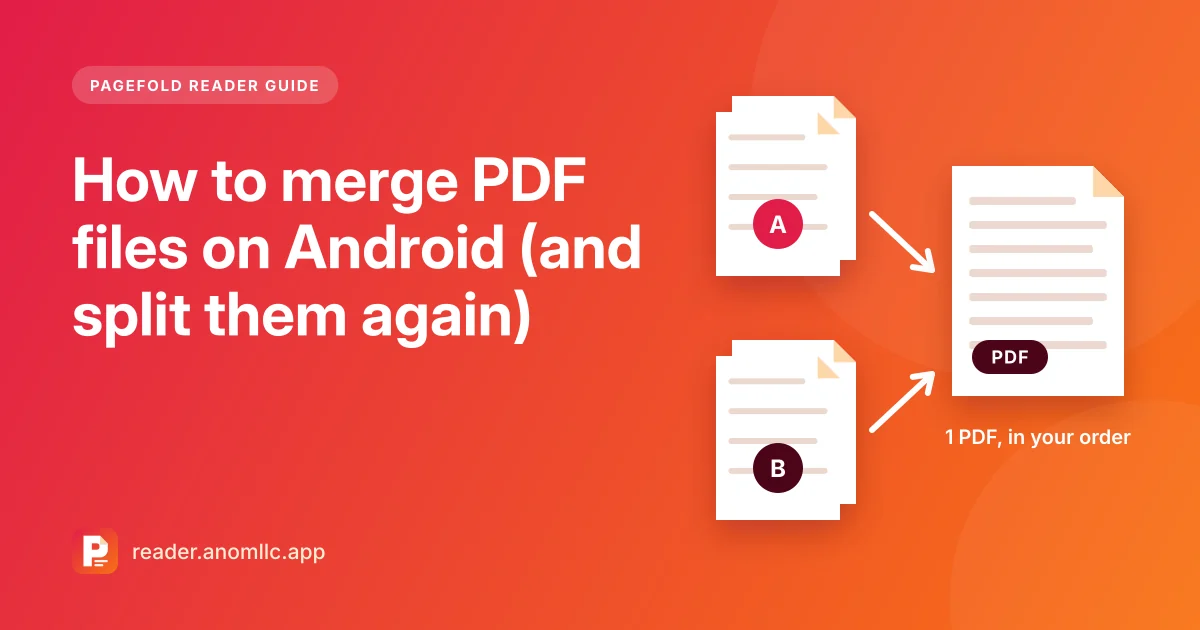
To merge PDFs on Android, open a PDF tool that combines files, pick the PDFs, put them in the order you want, and save the result as one new PDF. Pagefold Reader does this in a few taps, works offline and never uploads your files. Below are the steps, how to get the page order right, how to keep the file small enough to upload, and how to split a PDF when you need the opposite.
Why merge PDFs?
- Application forms often ask for one file: the form, your ID, and your certificates together.
- Upload portals for visas, universities and jobs often accept only one file per section.
- Sending one file is easier than sending five. The person receiving it doesn't have to guess the order.
Merge PDFs with Pagefold Reader
- Open Pagefold Reader and choose Merge from the PDF tools.
- Add the PDFs you want to combine. Android's file picker opens, so you can choose files from Downloads, Recent or other places on your phone.
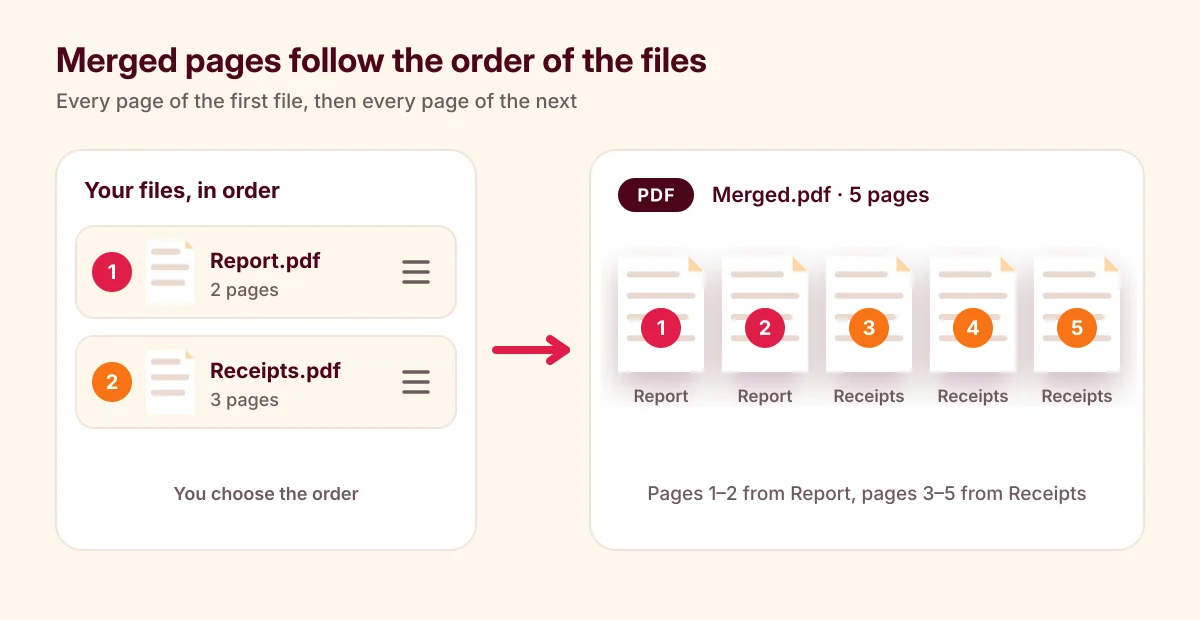
- Put the files in order. The pages of the first file come first in the merged PDF, then the pages of the second file, and so on.
- Merge and save. Tap Merge. The new PDF appears in your recent files. Tap Save to phone to keep a copy in Downloads or a folder you choose, with a clear name, or Share to send it straight away.
- Check the result. Open the new file and scroll through it, or look at the page thumbnails, to make sure every page is there and in order.
Pagefold Reader saves the merged PDF as a new file, so your original PDFs stay as they are.
Get the order right the first time
- Follow the checklist. If a form or a portal lists the documents in a certain order, merge them in that order.
- Number your files first. Renaming files to "01 Application", "02 Passport", "03 Certificates" makes the order obvious when you pick them. In most Files apps, press and hold a file and choose Rename.
- Fix sideways pages. If a page is sideways or upside down, use Rotate in Pagefold Reader, before or after merging.
- Unlock files first. If one of the PDFs has a password, it's simplest to save an unlocked copy first, then merge. You need to know the password. See how to remove a password you know.
Keep the merged file small enough to upload
Many upload forms have a size limit, usually shown next to the upload button. Merging doesn't shrink anything, so the merged PDF is roughly the size of all the files added together. Pagefold Reader doesn't have a compress tool, so keep the parts small instead:
- Leave out pages you don't need, such as blank backs or instructions pages. Split them out first (see below).
- Scan paper pages in black and white. A black-and-white scan is much smaller than a colour photo of the same page. Our guide on how to scan documents on Android explains the filters.
- Avoid full-size photos of documents. A scan of a page is clearer and usually smaller.
Split a PDF or extract pages
Sometimes you need the opposite: pages 3 to 5 of a 40-page statement, or a single page to send in a chat.
- Choose Split from the PDF tools in Pagefold Reader and pick the PDF.
- Enter the pages or page ranges you want, for example pages 3 to 5.
- Save the new PDF where you choose, or share it.
The original file isn't changed. Splitting is also a good way to send only the part of a document that someone needs, rather than every page of a private file.
Merging scans and photos with PDFs
Not every page starts as a PDF:
- Paper documents: scan them with a scanner app and save them as a PDF, then merge that PDF with the others. The Scan button in Pagefold Reader hands off to Pagefold, our separate scanner app.
- Photos and screenshots: turn them into a PDF first with Images to PDF, then merge. See how to convert JPG to PDF on Android.
Is it safe to merge PDFs online?
Plenty of websites merge PDFs for free, but to use them you upload your documents to someone else's server. For ID cards, bank statements and medical papers, merging on your phone is the safer habit. Pagefold Reader does all the work on your phone and doesn't upload your files.
Common questions
Does merging change my original files? No. Pagefold Reader saves the merged PDF as a new file.
Can I change the order after merging? Merge again with the files in a different order. If you only need to move one file's pages, split the merged PDF and merge the parts in the order you want.
Can I merge PDFs on Android without an app? Most phones don't include a way to merge PDFs, so you need an app or a website.
Does it work without internet? Yes. Pagefold Reader works offline.
Related guides: how to open a PDF on Android and how to password protect a PDF.