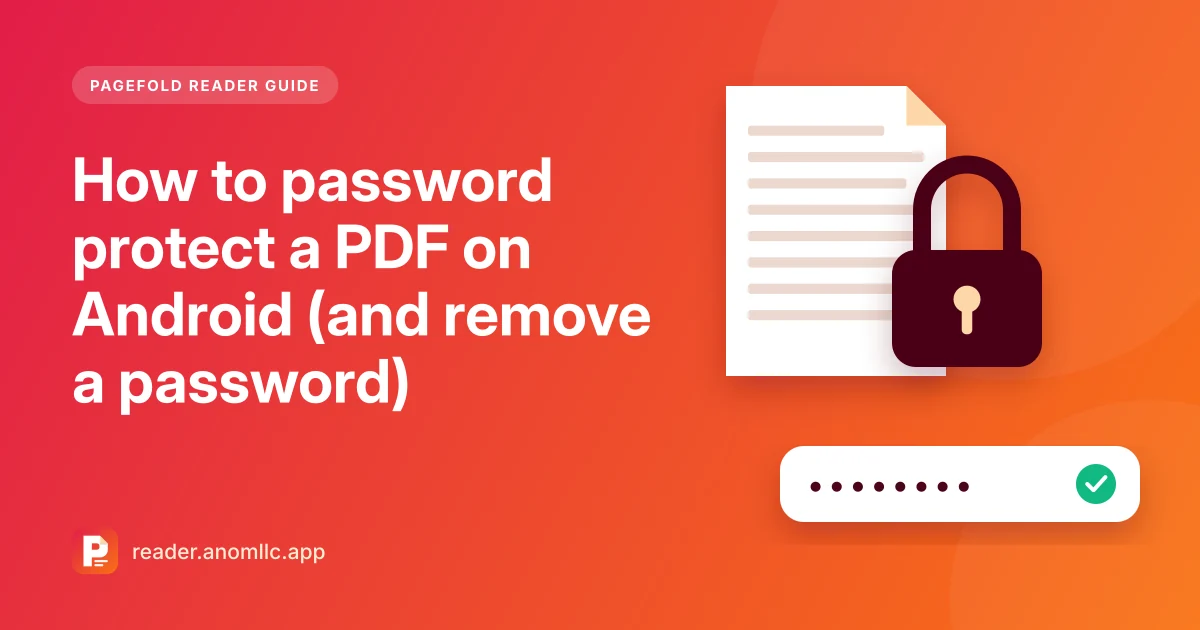
To password protect a PDF on Android, open a PDF tool that can add a password, choose the file, type a password and save the locked copy. Anyone who opens that copy has to type the password first. Pagefold Reader does this for free and offline. It can also remove a password from a PDF, as long as you know the current password.
When a password is worth it
A password makes sense for any PDF you wouldn't want a stranger to read:
- ID documents, passport and visa pages
- Bank statements, salary slips and tax papers
- Medical reports and insurance documents
- Contracts and signed forms
Emails get forwarded, and files sent in chats stay on every phone in the conversation. With a password, a copy that ends up in the wrong place stays unreadable.
Know the limit, too. A password protects the file, not what happens after someone opens it. The person you send it to can still read it, take screenshots or share what they see.
Add a password with Pagefold Reader
- Open Pagefold Reader and choose Add password from the PDF tools.
- Pick the PDF you want to lock.
- Type the password twice, carefully. The app checks that both match, because if you mistype it you won't be able to open the locked copy.
- Tap Add password. The locked copy appears in your recent files. Tap Save to phone to keep it where you choose, or Share to send it.
- Test it. Open the locked copy and type the password before you send it to anyone.
Pagefold Reader saves a new, locked copy and leaves the original file as it was. If you don't want an unlocked copy on your phone, delete the original after you've tested the locked one.
The password is used only to lock the file on your phone. Pagefold Reader doesn't save it or send it anywhere.
Choose a password that's hard to guess
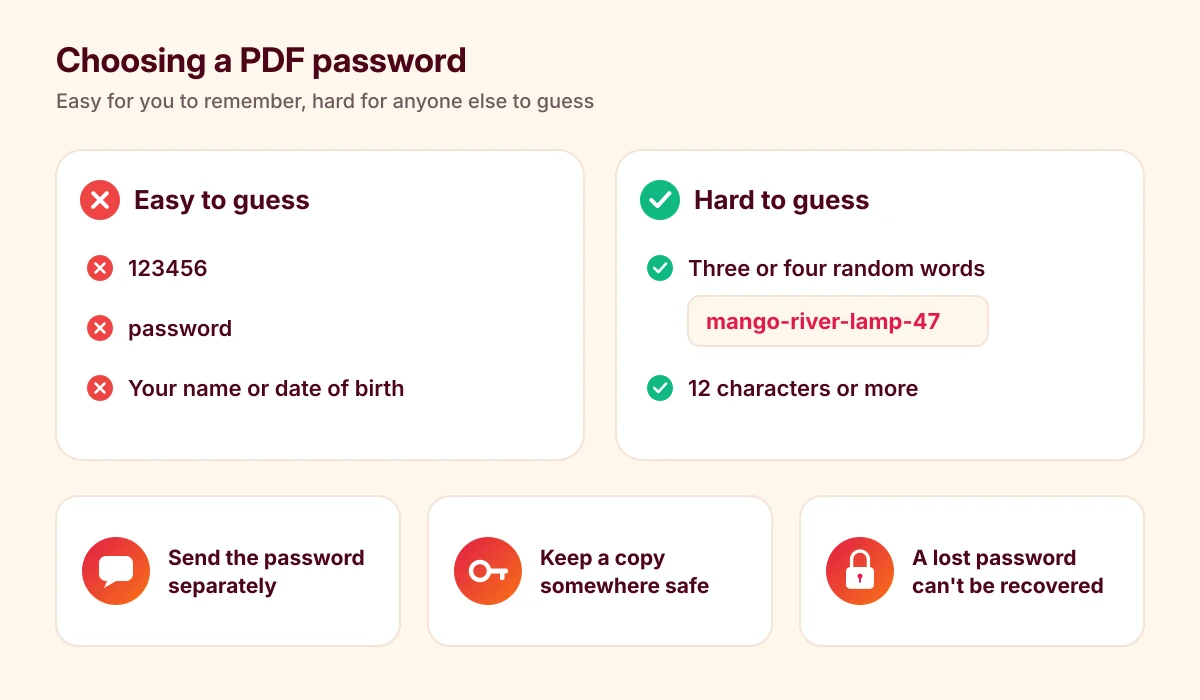
- Avoid the obvious: 123456, "password", your name, your date of birth or your phone number. These are the first things anyone tries.
- Use three or four random words and a number, like "mango-river-lamp-47". It's long, easy to remember and hard to guess.
- Aim for 12 characters or more. Software that guesses passwords gets through short ones quickly.
- Don't reuse the password of your email, your bank or your phone.
Send the password separately
If you email a locked PDF and put the password in the same email, anyone who gets that email can open the file. Send the password another way: a text message, a phone call, or a different chat app from the one you used for the file.
Keep a copy of the password
There's no "forgot password" link for a PDF. If you lose the password, nobody can open the file with Pagefold Reader, including you. Keep the password somewhere safe, such as a password manager, and keep the original, unlocked file somewhere private if you may need it again.
Remove a password you know
Typing a password every time gets tiring, especially for your own files. Pagefold Reader doesn't save passwords, so it asks for the password each time you open a locked PDF. If the file is yours and you know the password, you can save an unlocked copy:
- Choose Remove password from the PDF tools.
- Pick the locked PDF and type its current password.
- Tap Remove password. The unlocked copy appears in your recent files; tap Save to phone to keep it where you choose.
You must know the current password. Pagefold Reader can't remove or recover a password you don't know. If you've forgotten it, ask the person who sent you the file.
To simply read a locked PDF, you don't need to remove anything. Open it in Pagefold Reader and type the password when asked.
Bank statements and bills
Many banks and phone companies send statements as locked PDFs. The email usually explains what the password is made of, for example part of your name and your date of birth, or your customer number. Read the email carefully, then type the password when Pagefold Reader asks for it.
If you keep statements on your phone, consider leaving them locked. They hold exactly the kind of details you don't want a stranger to read.
Common questions
Is a password-protected PDF secure? The file is encrypted, so its contents can't be read without the password. A short or common password can be guessed by software, which is why length matters.
Does locking a PDF need internet? No. Pagefold Reader adds and removes passwords offline, on your phone.
What if the other person can't open the file? Check that they're typing the password exactly, with the same capital letters and no extra spaces. If they see an error instead of a password box, their PDF app may not support passwords. See PDF won't open on Android?
Related guides: how to merge PDF files on Android and how to convert JPG to PDF.