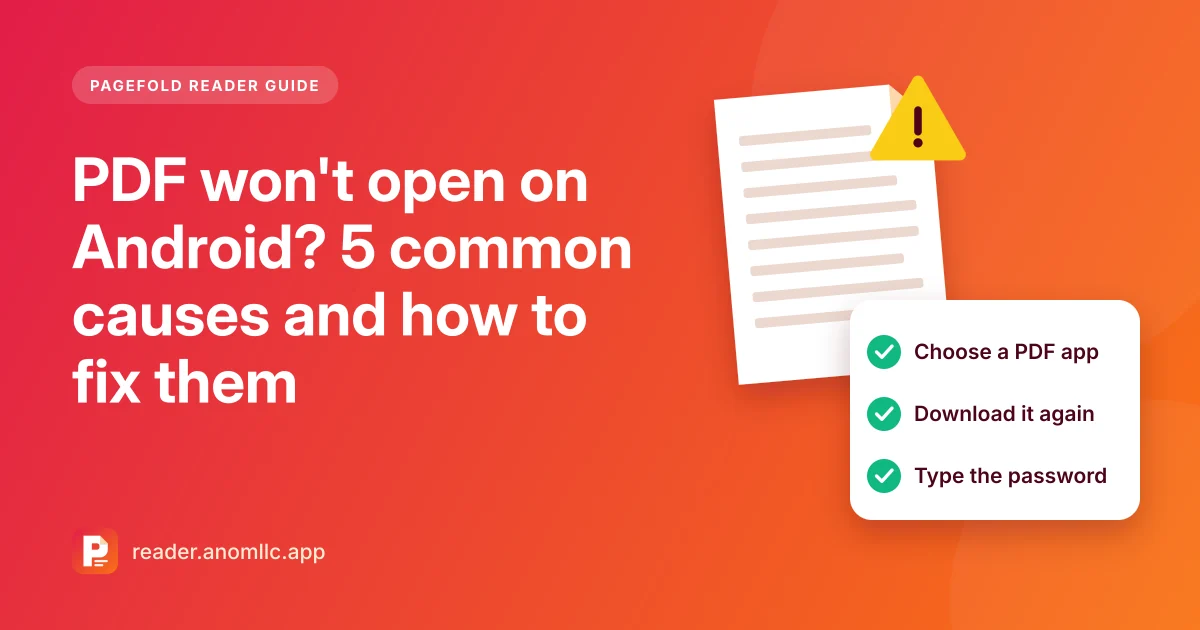
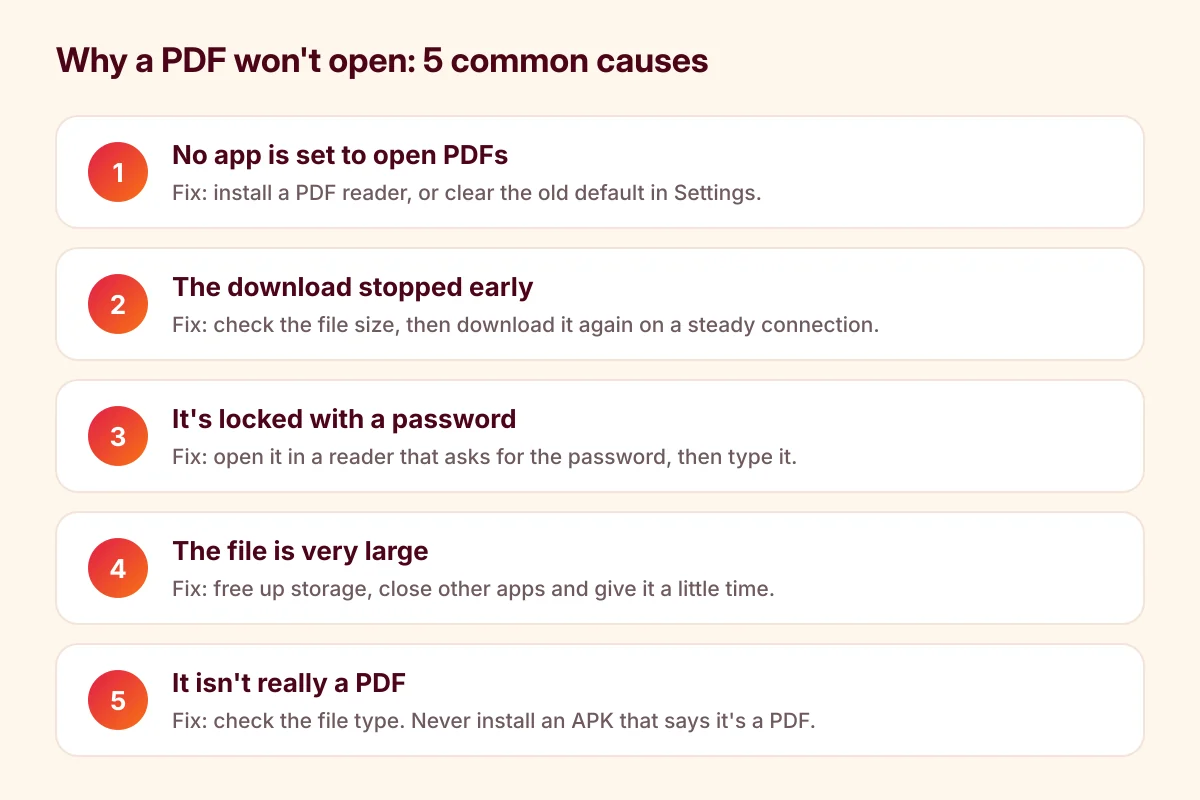
When a PDF won't open on Android, the cause is almost always one of five things: no app is set to open PDFs, the file didn't download completely, it's locked with a password, it's very large, or it isn't really a PDF. Each one has a quick fix. Start with the message you see on screen, then work through the matching section below.
Match the message to the cause
| What you see | Most likely cause |
|---|---|
| "No app can open this file" or "No app found" | No PDF app on the phone (cause 1) |
| "Can't open file", "File is damaged" or "corrupted" | The download stopped early (cause 2) |
| A box asking for a password, or an error in a simple viewer | The PDF is locked (cause 3) |
| A blank screen, a freeze, or the app closes | A very large file or full storage (cause 4) |
| An install screen, or text that looks like a web page | It isn't really a PDF (cause 5) |
The exact wording differs between phones and apps, but the meaning is the same.
1. No app is set to open PDFs
Android hands each file to an app that says it can open that type of file. If no app on your phone opens PDFs, you see "No app can perform this action" or similar. The same thing happens if you once chose an app with Always and later uninstalled or turned off that app.
Fix:
- Install a PDF reader from Google Play. Pagefold Reader is free and needs no account.
- Go back to the chat, email or folder and tap the PDF again.
- Choose the reader in the Open with list.
If your phone keeps sending PDFs to an app that doesn't work, clear that app's default in Settings › Apps. Our guide on how to open a PDF on Android shows the steps.
2. The download stopped early
A PDF that only partly downloaded is cut off, and no reader can make sense of it. This happens with a weak signal, when you leave a chat before the download finishes, or when the phone runs out of storage halfway through.
How to check: in your Files app, press and hold the file and look for Details or Info. A file of a few KB that should be a multi-page document is almost certainly incomplete. If the chat or email shows the original size, compare the two.
Fix:
- Delete the broken copy.
- Download the file again on Wi-Fi or a steady connection, and wait until the download is complete before you tap it.
- If it still fails, ask the sender to send it again. Chat apps sometimes can't download older files, and a fresh copy fixes that.
- If the sender's copy doesn't open either, the file was damaged when it was made. They need to save or export the PDF again from the original document.
3. The PDF is locked with a password
Bank statements, salary slips and bills are often sent as password-protected PDFs. The email usually explains the password, for example part of your name and your date of birth. Some simple viewers can't ask for a password, so they show an error instead.
Fix:
- Open the PDF in a reader that asks for the password. Pagefold Reader shows a password box when you open a locked file.
- Type the password exactly. Passwords are case-sensitive, so check capital letters, and make sure your keyboard didn't add a space at the end.
- If you don't know the password, check the original email or ask the sender. Pagefold Reader can't open a locked PDF without its password.
Be careful with websites that promise to remove passwords for you. You'd be uploading a private document to a stranger's server. If the file is yours and you know the password, you can save an unlocked copy on your phone instead. See how to remove a password from a PDF.
4. The file is very large
Scanned books, catalogues and PDFs full of photos can be hundreds of megabytes. On a phone with little free memory or storage, the reader may show a blank page, freeze or close.
Fix:
- Free up storage. When you open a PDF from another app, Pagefold Reader keeps a copy in its own storage so the file can reopen from the recent list. That needs free space about the size of the file.
- Close other apps, and restart the phone if it hasn't been restarted for a while.
- Give it a moment. The first page of a big file can take a few seconds to appear.
- Ask for a smaller file. The sender may be able to export a compressed version, or send only the pages you need. If the file does open, you can split out just the pages you need and keep the smaller copy.
5. It isn't really a PDF
A file can end in ".pdf" without being a PDF. Common cases:
- A web page saved by mistake. A download link that needed a sign-in can save the sign-in page instead of the document. The "PDF" is then a small web page file.
- A renamed file. A text document or a photo was renamed to end in ".pdf". Renaming doesn't change what's inside.
- A scam file. Messages sometimes carry a file named like "bill.pdf" that is really an app (an APK file). A real PDF never asks you to install anything.
Fix: check the file's details in your Files app, where the type or the full name is shown. Ask the sender to export the document as a real PDF. If tapping a "PDF" opens an install screen or asks you to allow installs from unknown sources, stop, don't install it, and delete the file.
Still stuck?
- Restart your phone and try again.
- Update your PDF reader from Google Play.
- Try a second reader app. If no app can open the file, the problem is the file itself, and a new copy from the sender is the fix.
Once the file opens, these guides help with the next step: